
Integration · Work tracking
 Wavelength
 Jira
JiraWavelength for Jira
Turn the process you mapped on a call into a Jira issue that your team can plan and track.
Every plan, including Free. The free plan needs no card.
What it does
A call often ends with work to do: fix a step, automate a handoff, or build a new path. Connect Jira once. Then open any flow, click Export, and pick Send to Jira.
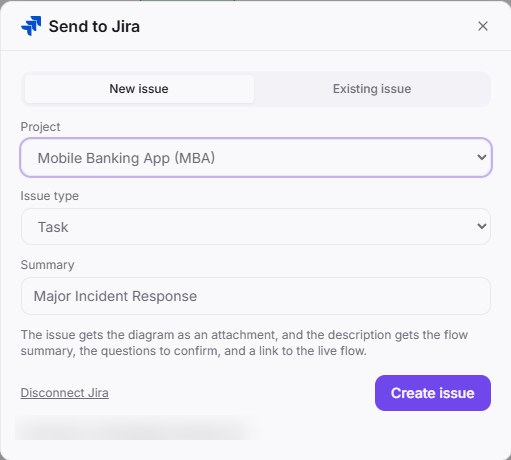
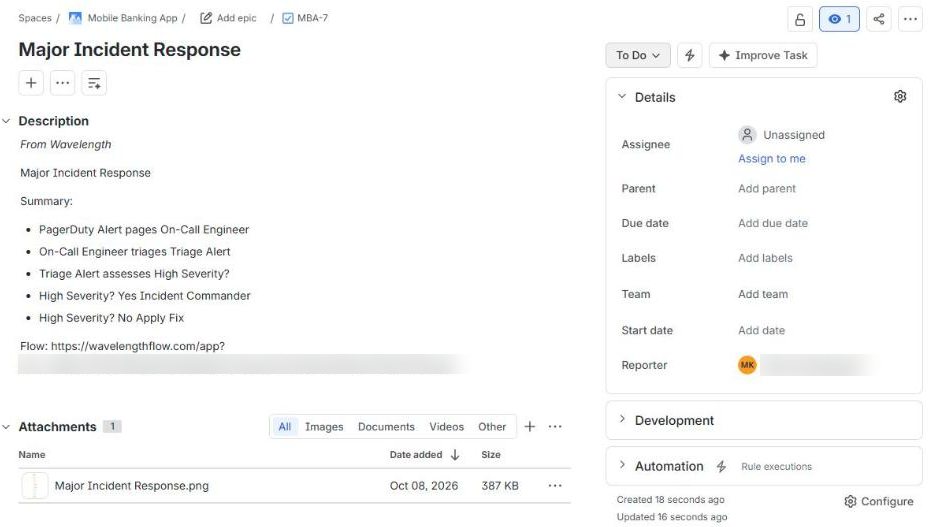
Pick a project and an issue type. Wavelength creates the issue with the diagram as an attachment. The description gets the summary, the questions to confirm, and a link to the live flow. You can also add a flow to an existing issue as a comment.
See it in action
These screenshots come from a real Wavelength account and a Jira Cloud site with sample projects.
What you can do
- Create an issue in any project you can use, as a Task, a Story, a Bug, or another standard type.
- Attach the diagram to the issue as a PNG file.
- Put the summary, the questions to confirm, and a link to the live flow in the description.
- Search issues by summary or key, and add a flow to an existing issue as a comment.
- Disconnect at any time in Settings, then Connected apps.
How to connect
- In Wavelength, open Settings, then Connected apps, and click Connect next to Jira. You can also start from Export, then Send to Jira.
- Sign in to Atlassian, pick your Jira site, and click Accept.
- Open a flow, click Export, then Send to Jira.
- Pick a project and an issue type, then click Create issue.
Access and privacy
Wavelength asks for permission to read and write Jira issues, to read user details, and for a refresh token, so the connection stays on. It uses them to list your projects, search the issues you look for, and create the issues and comments you send. It stores the tokens encrypted. Disconnect in Settings, then Connected apps. You can also remove the app in your Atlassian account settings, under Connected apps.
Common questions
Does Wavelength work with Jira?
Yes. Wavelength creates a Jira issue from a flow, with the diagram as an attachment and the summary, the questions to confirm, and a link to the live flow in the description. It can also add a flow to an existing issue as a comment.
Which Jira works with Wavelength?
Jira Cloud. Jira Data Center and Jira Server are not supported.
Which issue types can I create?
Any standard issue type in the project, such as Task, Story, or Bug. Subtasks are not offered.
What if I use more than one Jira site?
Pick the site when you connect. If your account can use more than one site, you can switch the site in the Send to Jira dialog.
Which plans include Jira?
Every plan, including Free.
 Salesforce
 Notion
 Slack
Slack Confluence